
A fictional product walkthrough
See the product. Follow a real analysis workflow.
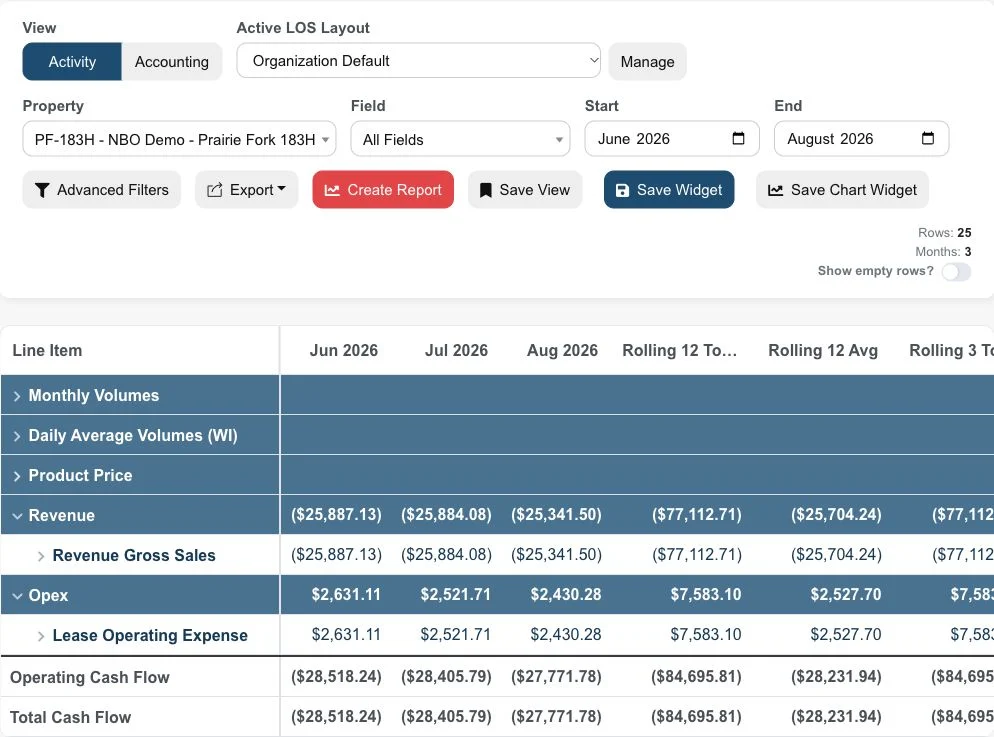
Explore three actual Upstream+ views with fictional demonstration data: property economics, a lease operating statement and an AFE budget review. Each step explains what you are looking at and the question it helps you ask.
One connected operating picture.
- 01LOS & LOE
The financial starting point.
- 02Well economics
The property level context.
- 03Budgets & AFE
The expectations behind the work.
- 04History & analysis
The view that carries forward.
01 / Locate the movement
Start with the field and well view.
In the fictional Northline Basin demonstration, Prairie Fork is one of the fields available for review. Set a comparable period and review financial results by property before narrowing the question to a well or a analysis category.
- Confirm the period and financial measure.
- Compare the field with the wider portfolio.
- Define the movement that needs an explanation.
02 / Add the financial context
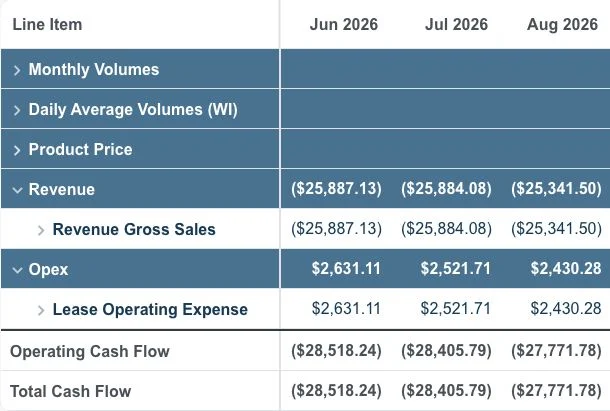
Bring the LOS into the same conversation.
Review the relevant LOS layout and category for the same analysis scope. Follow the supporting records where available, and separate a timing or classification question from an operating change.
03 / Compare the expectation
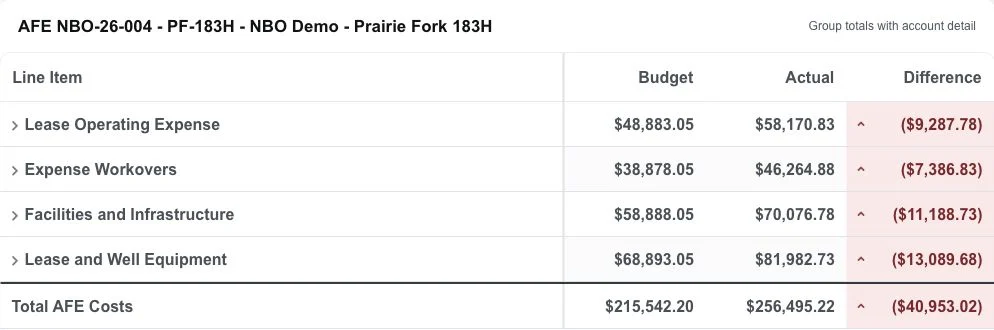
Review the work against its plan.
Use the budget-versus-actual view to review the relevant AFE, well, or work. Compare the amounts on a consistent basis and use the detail to frame the next operating question.
- Check the budget version and scope.
- Locate the actual records contributing to the difference.
- Agree on the question, owner, and next review.
Fictional data. Actual product views.
Bring your operating question to the working session.
The screenshots use fictional demonstration data from the application. Shape a working session around your analysis question and follow the relevant record from summary to supporting detail.
Start the conversation
Bring your well data question. See the connected workflow.
Start with the analysis question your team needs to answer. We will show the relevant Upstream+ workflow.